Bland Integration
This guide walks you through connecting your Bandwidth phone numbers to a Bland hosted voice agent. The integration is a bring-your-own-carrier (BYOC) setup: SIP trunking connects Bandwidth and Bland on your behalf, so your Bland agent can place outbound calls and answer inbound calls using your Bandwidth numbers and network.
This is a verified integration: Bandwidth has built and tested it against the configuration described on this page. No application code is required, and setup is configuration only. This integration is supported on the Bandwidth Universal Platform only. Integrations on the legacy platform are not verified and are supported best effort.
What you'll need
- A Bandwidth Universal Platform account with Bland interconnect capability. To enable it, open a ticket with your account representative, include the Bandwidth admin user who will configure the integration, and specify that you want a Bland integration.
- A Bland account with SIP trunking enabled.
Calling features supported
- Inbound calls to your agent
- Outbound calls from your agent
- Calls redirected from your agent
Configure Bandwidth
Create your Bandwidth SIP Endpoint
Bland requires a Bandwidth SIP Endpoint for both inbound and outbound calls, so complete this section even if you only plan to use one direction. The SIP Endpoint is a fully qualified domain name (FQDN) plus a port:
<hostname>.auth.bandwidth.com:port
The FQDN hostname is made up of two parts: a realm name you choose, plus a Bandwidth-supplied part:
<your realm name>-<bandwidth-supplied part>.auth.bandwidth.com
Bandwidth generates the FQDN when you create a SIP realm.
-
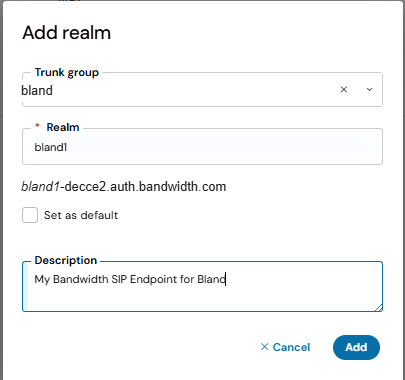
In the Bandwidth App, go to Account → SIP Credentials → Manage Realms and click Add to create a realm.
- Give the realm a name (for example,
bland1) and an optional description. - Bandwidth generates the FQDN for the realm. Copy it exactly as it appears in the Bandwidth App — you'll paste it into Bland as part of your SIP Endpoint. For a realm named
bland1, the FQDN looks likebland1-decce2.auth.bandwidth.com.
- Give the realm a name (for example,
-
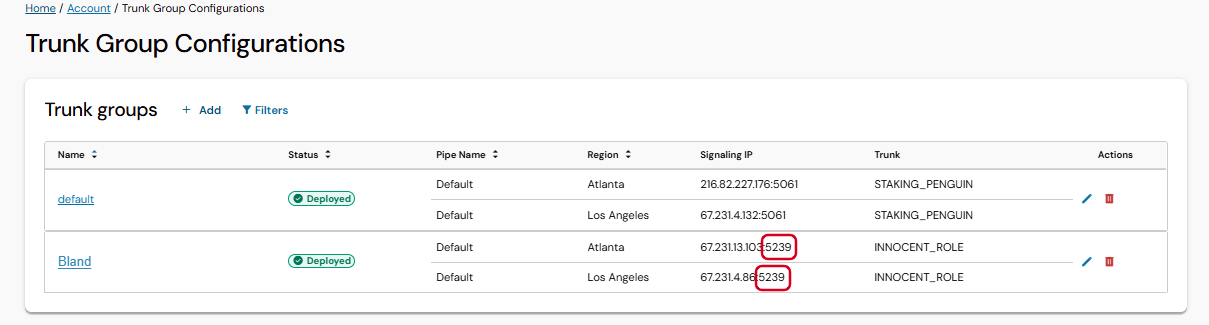
Go to Trunk Group Configurations in the Bandwidth App and note the port assigned to your trunk group. You'll combine this with the FQDN to complete the SIP Endpoint.
 note
The port is assigned per trunk group and varies by account. Use the value from your own Trunk Group Configurations page, not an example from this guide.
A complete SIP Endpoint looks like bland1-decce2.auth.bandwidth.com:5239.
Configure inbound calls
To send inbound calls to your Bland agent, create a Voice Configuration Package (VCP) that routes your number to Bland's SIP domain. For a full walkthrough of this screen, see Managing Voice Configuration Packages.
-
In the Bandwidth App, go to Service Management → Voice Configuration and click Add Package.
-
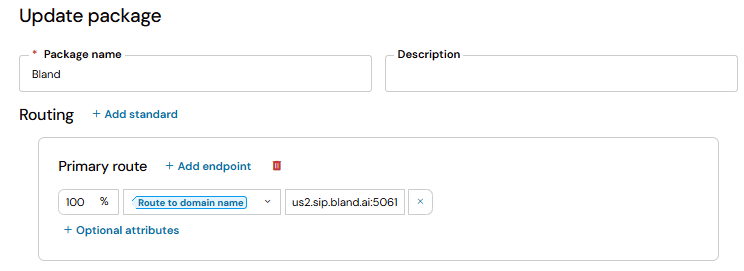
Enter a Package name (for example,
Bland) and an optional description. -
Under Routing, create the Primary route and click Add endpoint.
-
Set the endpoint type to Route to domain name and enter Bland's domain:
us2.sip.bland.ai:5061. -
Click Create Package.
-
Open the phone number you want your Bland agent to answer, select the VCP you just created from the Voice configuration package drop-down, and click Save.
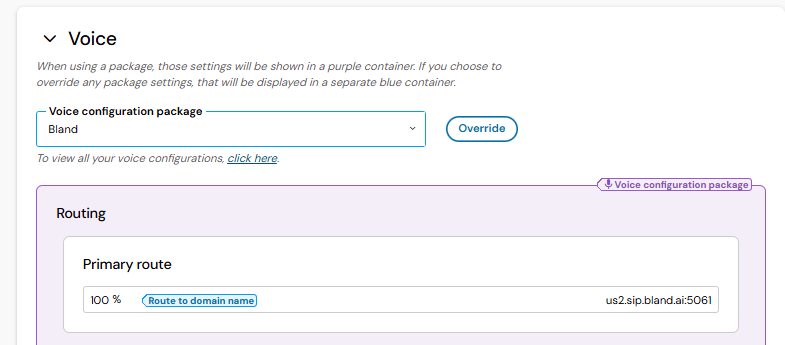
Inbound calls to that number now route to your Bland agent.
You can add multiple numbers to the same VCP. Within Bland, assign those numbers to the same agent or to different agents.
Configure outbound calls
Complete this section only if you plan to place outbound calls. Bland authenticates outbound calls using credentials defined on your SIP realm.
- Go to Account → SIP Credentials and click Add to create a credential.
- Enter a Username and Password.
- Select the realm you created when you created your SIP Endpoint.
- Save. Bland uses these credentials to authenticate outbound calls.
Configure Bland
Bland configures every SIP trunk to support both inbound and outbound calls, so create the trunk even if you only plan to use inbound.
-
Sign in to your Bland account, or create one if you haven't already.
-
Go to Phone Numbers.
-
Select SIP at the top of the page.
-
Click Create Trunk in the upper right to open the trunk wizard.
-
Fill in each step of the wizard:
- SIP Endpoint: the FQDN plus port you created in Bandwidth, for example
bland1-decce2.auth.bandwidth.com:5239. - Configure your firewall: Bandwidth has already configured the firewall on its side. Check the box confirming this and continue.
- Authentication: for outbound calls, enter the SIP username and password you created and assigned to that realm.
- Add Numbers: add the Bandwidth number you want to call from or receive calls on, in E.164 format with a leading
+(for example,+19195551234).
- SIP Endpoint: the FQDN plus port you created in Bandwidth, for example
-
Save the trunk.
-
Assign an agent to your phone number:
- Find your number under Phone Numbers and click Configure.
- Under Assignment, click Configure number.
- Select the agent from the drop-down list.
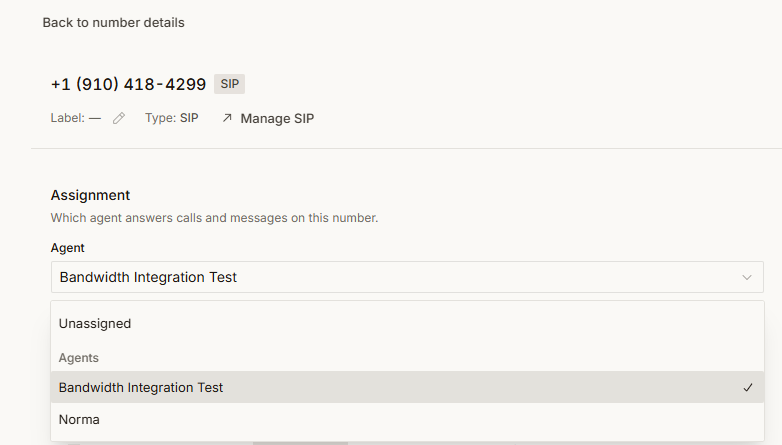
Your Bland agent can now place outbound calls and answer inbound calls through Bandwidth using that number.
Bland runs some connection checks while creating the trunk group. It's normal for these checks to report errors — disregard them.
If you don't see the SIP option in Bland, your account may not have SIP trunking enabled yet. Contact Bland support to turn it on.
Troubleshooting
| Symptom | Likely cause | What to check |
|---|---|---|
Outbound calls rejected with 403 or 407 | SIP credential or realm mismatch | Make sure the SIP endpoint in Bland matches the FQDN Bandwidth created for your realm exactly, and that the username and password match the credential assigned to that realm. |
| Calls fail before reaching Bandwidth | Wrong endpoint or port | Confirm you copied the FQDN verbatim and used the port from your Bandwidth trunk group configuration. |
| Call connects but there's no audio | Transport or media mismatch | Make sure transport, port, and media encryption settings match on both sides. |
| Number won't save in Bland | Number format | Enter the number in E.164 format with a leading +. |
| SIP option is missing in Bland | SIP not enabled on the Bland account | Contact Bland support to enable SIP trunking. |
Resources
- Managing Voice Configuration Packages — Bandwidth
- Bland — Bland